Use the RockIT Lock mobile app to open locks and devices that have been shared to you on the RockIT Lock platform
Login
Login to the app is accomplished by tapping the Login button on the splash page and selecting the appropriate option:
- Login with Email
- Requires a registered RockIT Lock account
- Unique Code
- An administrator has sent you a temporary code via other means such as SMS or email
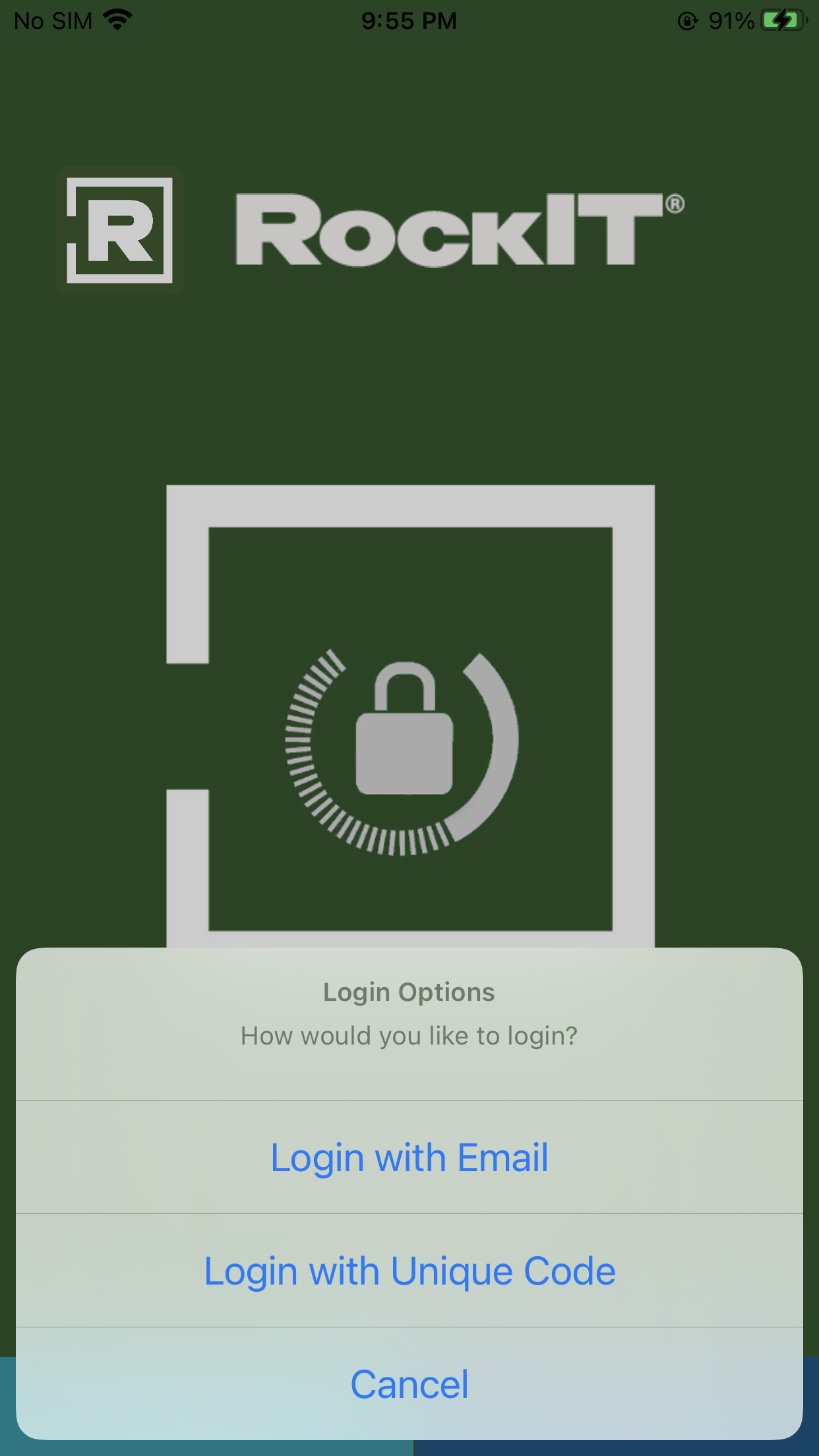
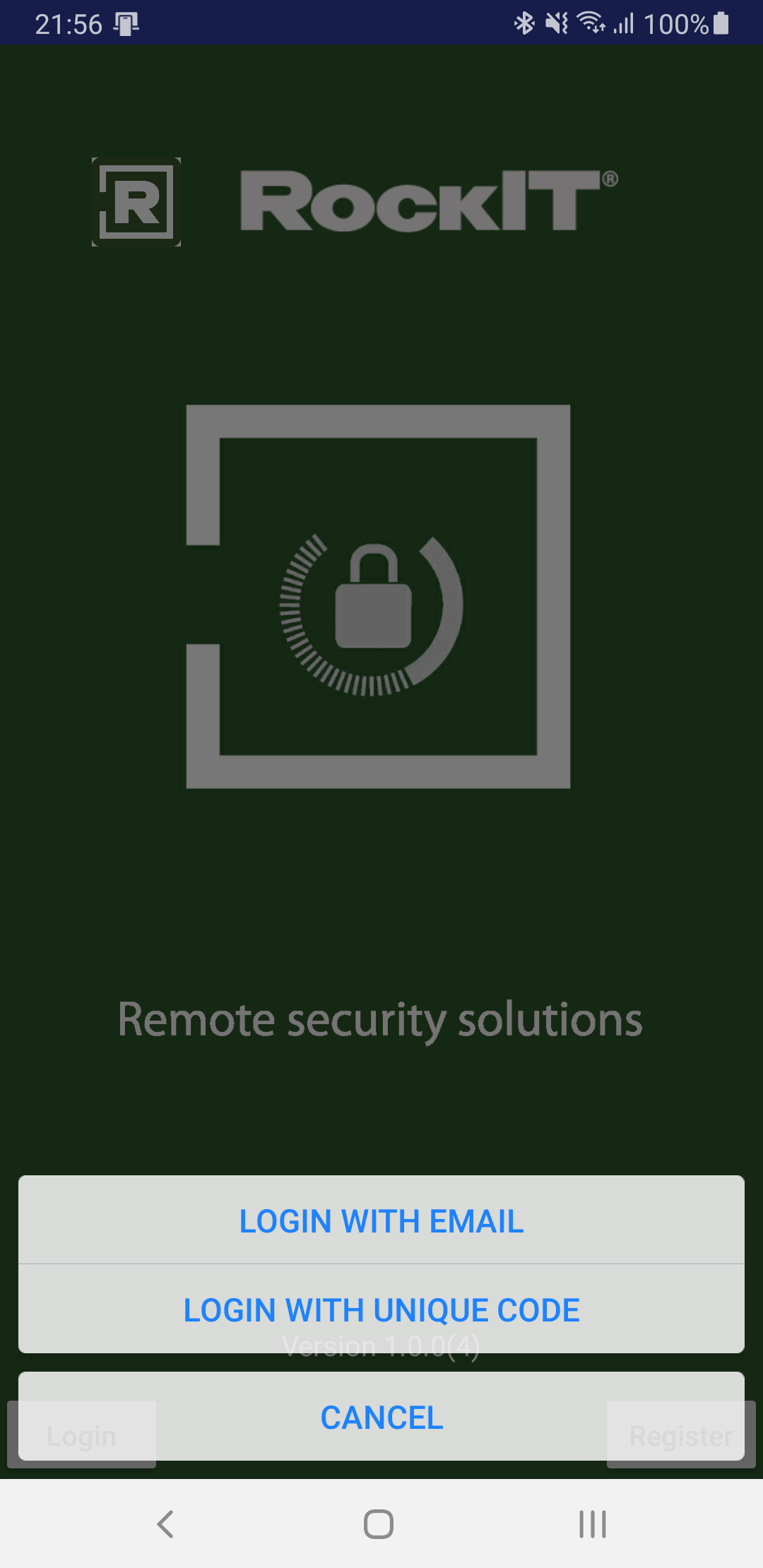
Fig 1. RockIT Lock mobile app Login options. iOS left Android right
Find & Unlock
The Find & Unlock screen is the main screen of the app. While the app is on this screen it is scanning for locks that you have access to and are within range.
Some locks and devices need the user to first wake up or power the lock before it will start broadcasting. and be detected by the app
You access a lock by tapping the appropriate line on the screen. Different colour bars across the bottom of the screen will give you updates about the unlock process.
From the Find & Unlock screen you can navigate to other screens like My Access and Activity. Note location of the Menu 'hamburger' button on Android devices.
You can refresh the app’s scan for locks by swiping down from the top of the screen.
Note:
1) Some lock types have extra options available through a either a Swipe (iOS) or Tap and Hold (Android) gesture. Some locks also need to be woken from a sleep state, usually by pressing a button on the lock. Refer to lock articles for further information.
2) If multiple users have their apps open at the sametime as someone who is going to unlock, lock or remove a shackle then all mobile phones within Bluetooth range will capture this data. Data will only be captured when a user has permission to the activated padlock.
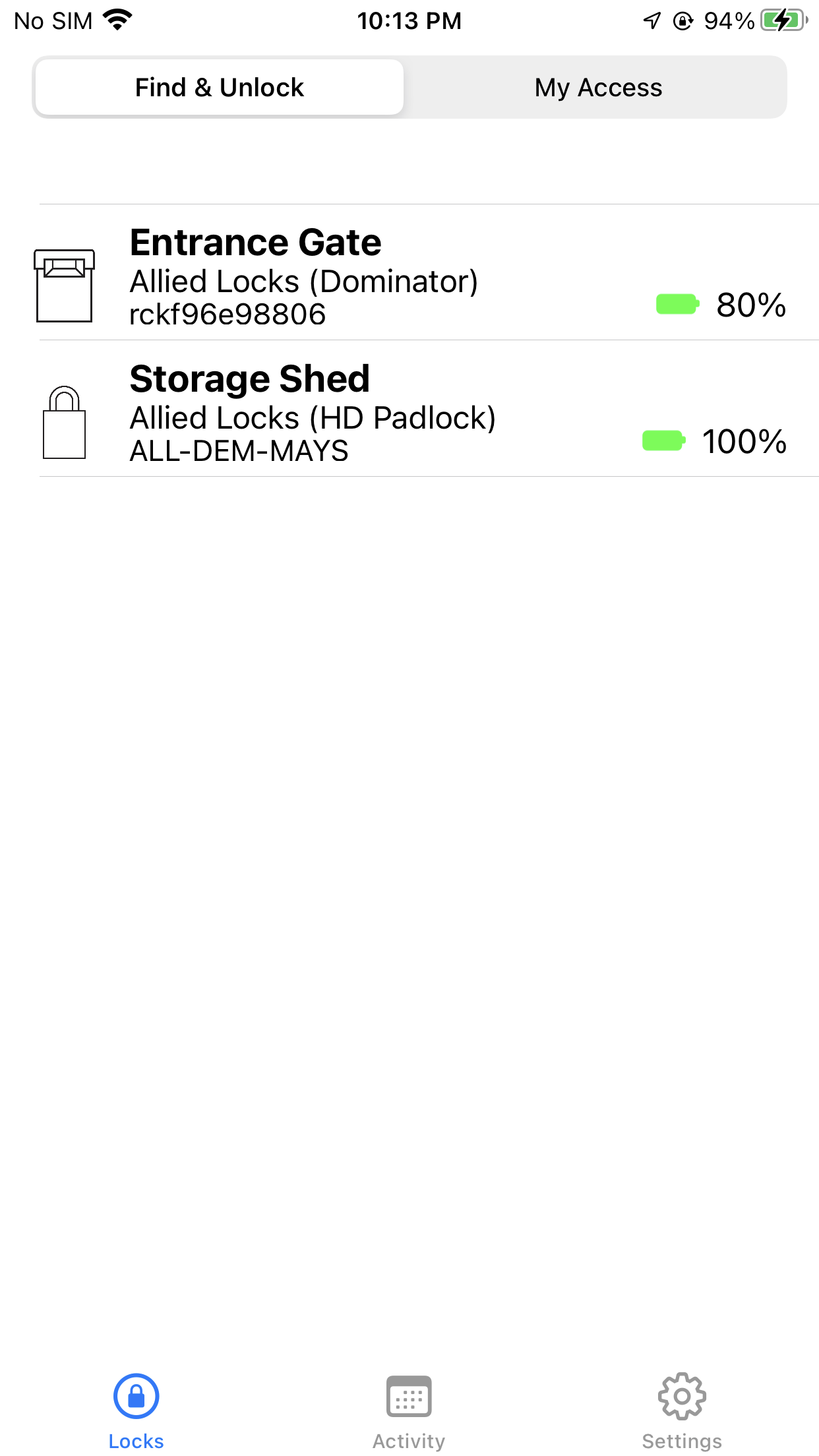
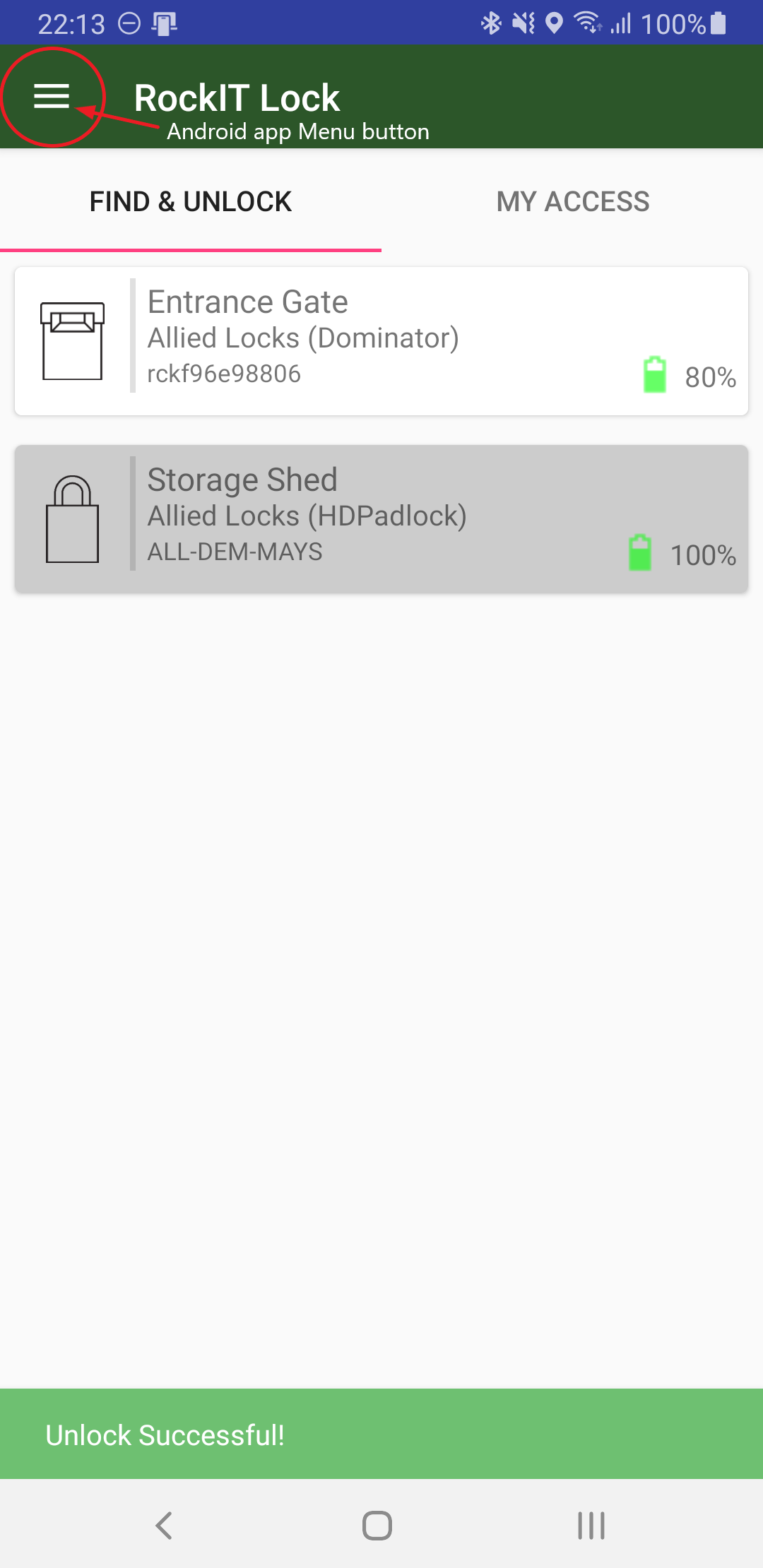
Fig 2. RockIT Lock mobile app Find & Unlock screen. iOS left, Android right with example of an unlock status message
My Access
The My Access screen allows you to check what locks have been shared to the account that is currently logged in.
Use the search field to look for specific locks.
Tap the calendar icon to see the access level and any time restrictions that your permission has.
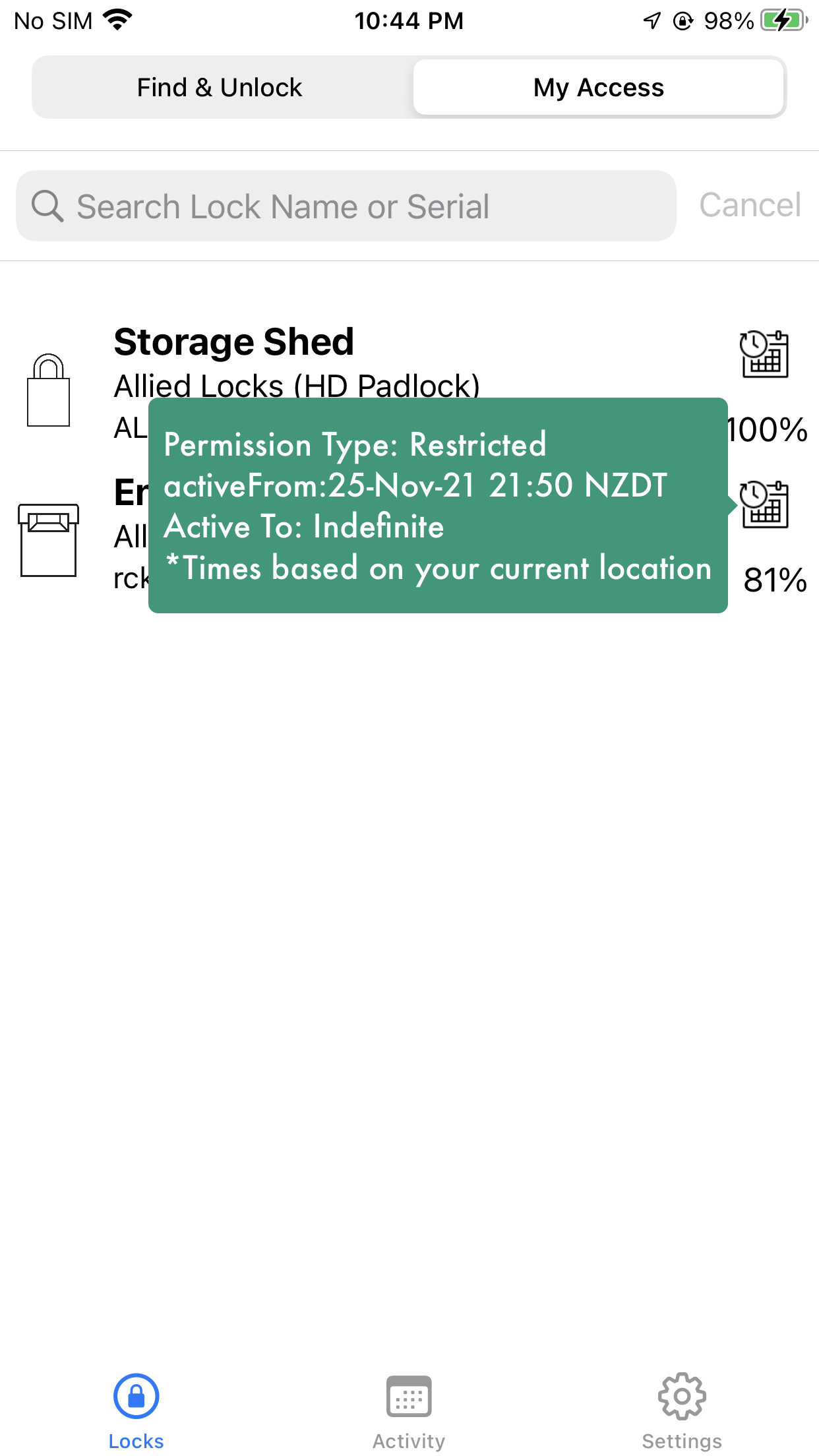
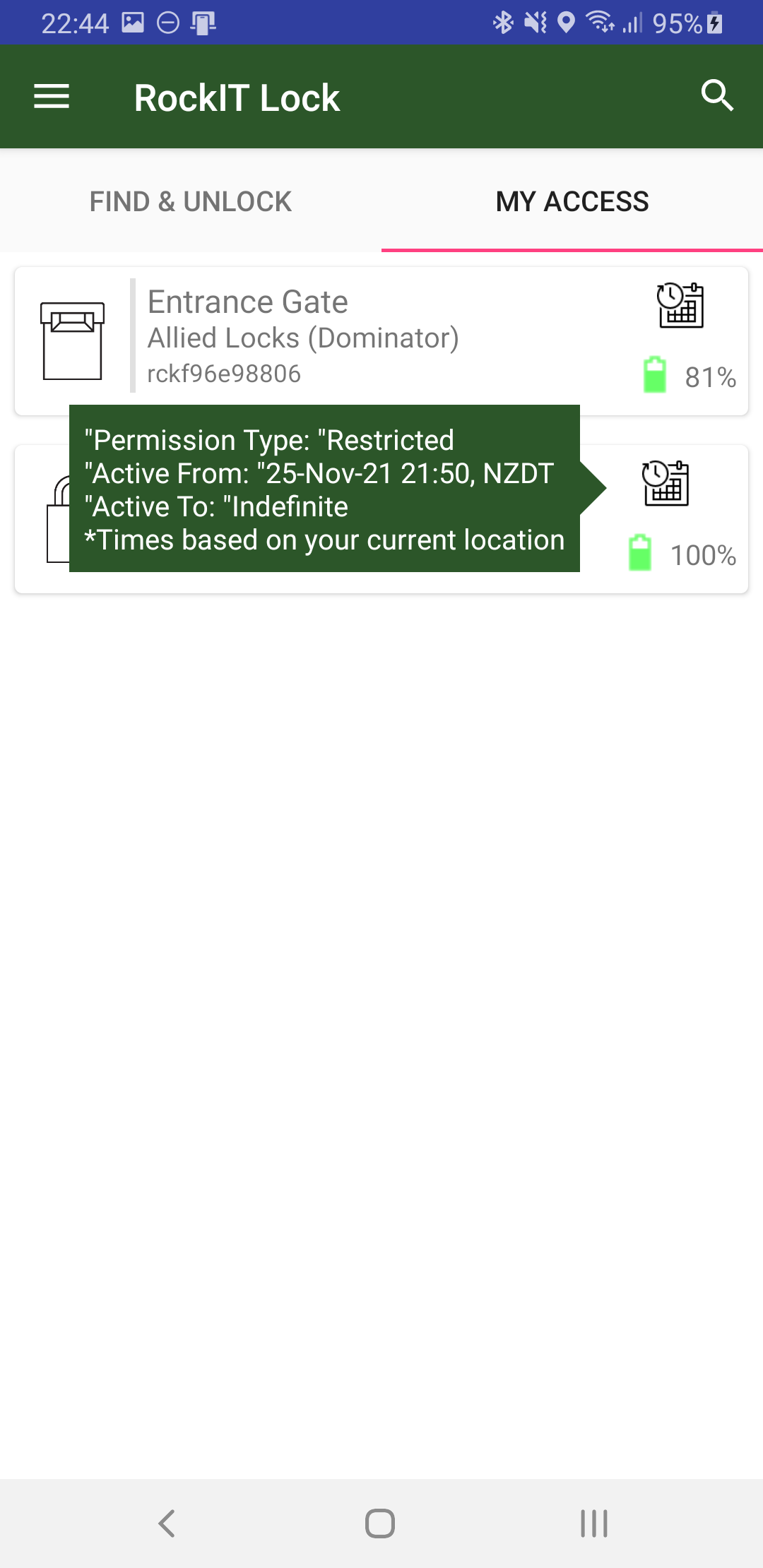
Fig 3. RockIT Lock mobile Login options. iOS left, Android right with examples of the extra info available on tap
Activity
The Activity page allows you to view recent activity on locks that you own or Administer.
For unlock activities, you can bring up a map by using Force Touch on iOS or just tapping the activity line on Android.
For Android, access Activity via the Menu
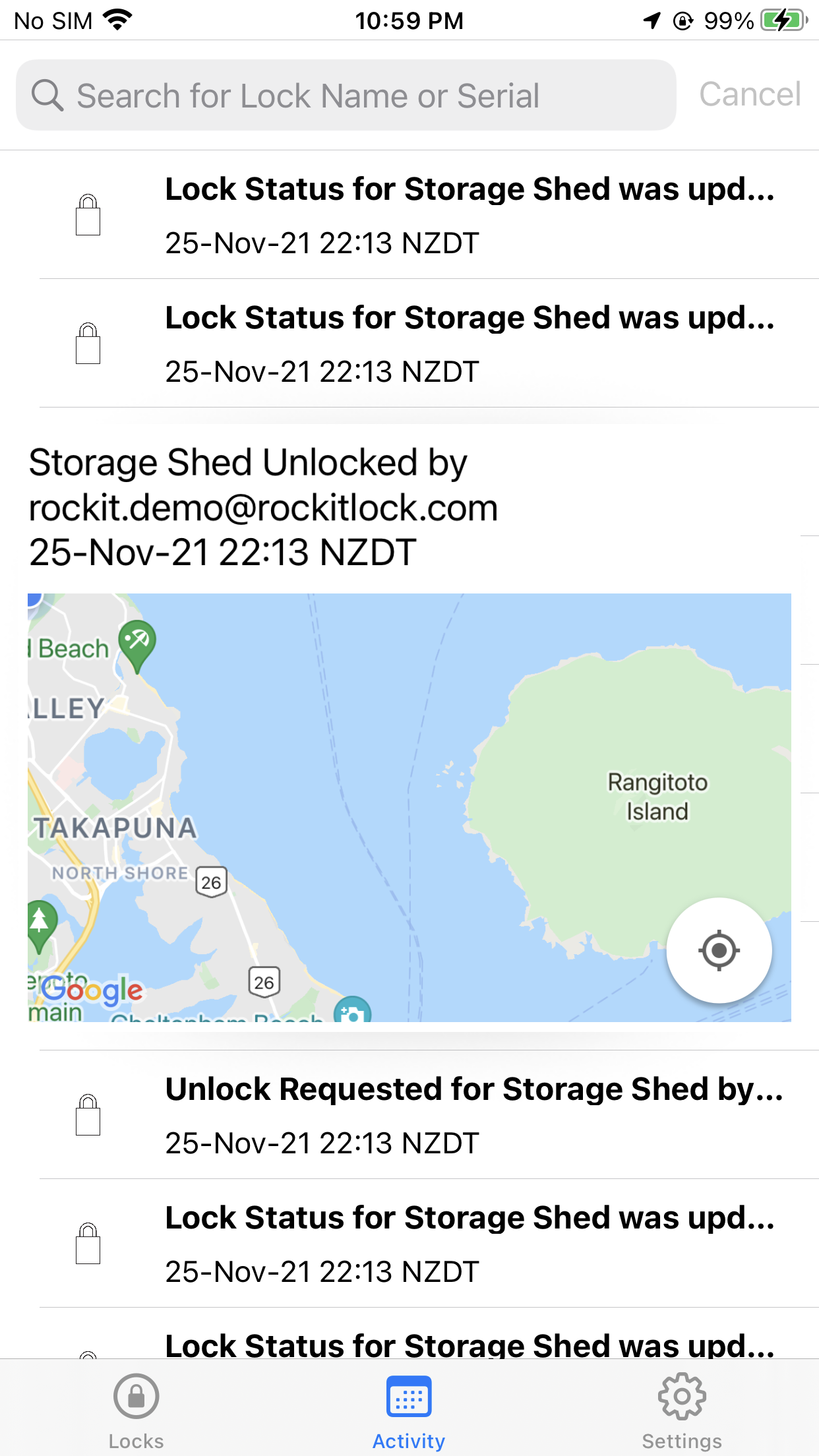
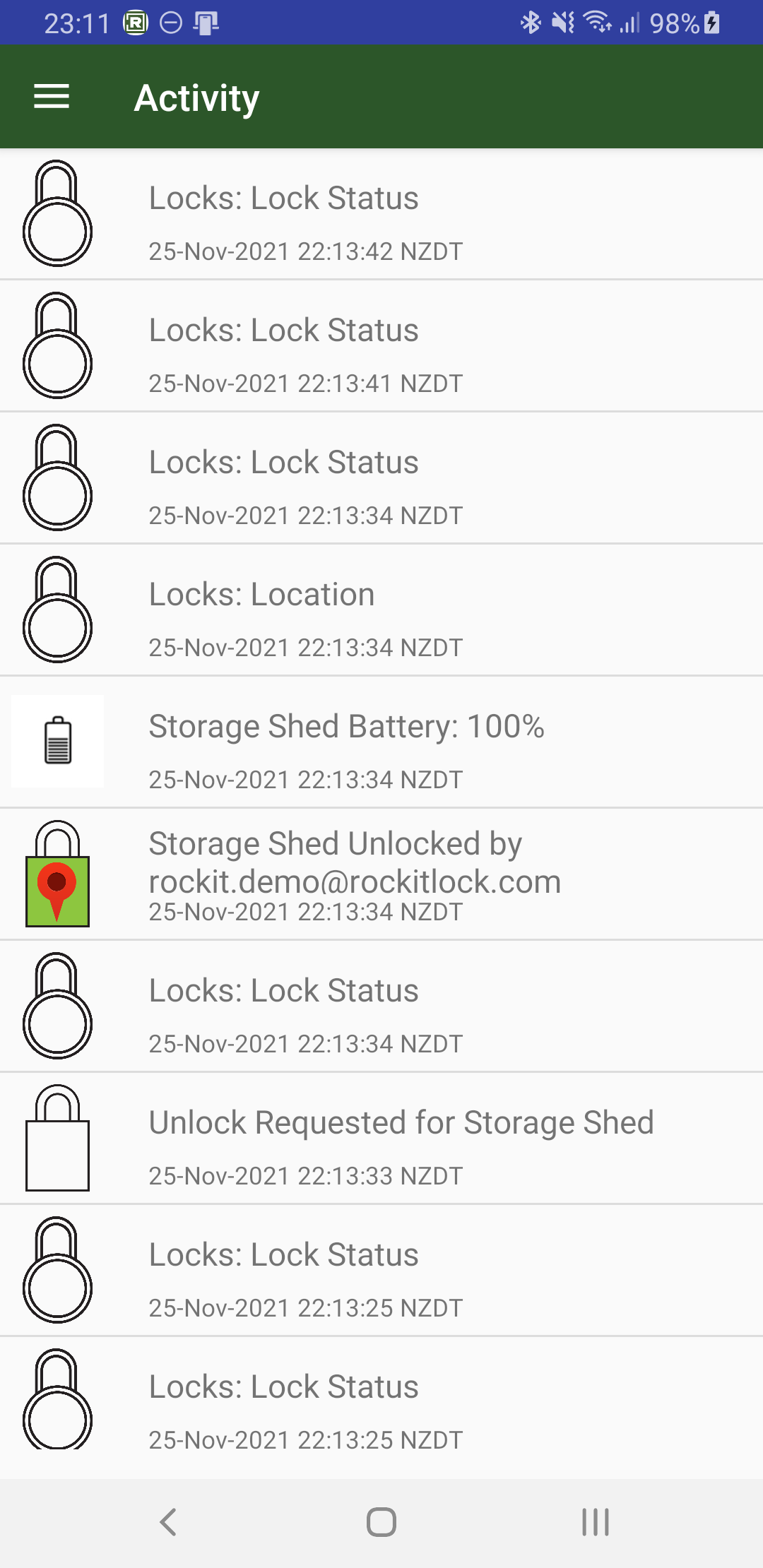
Fig 4. RockIT Lock mobile app Activity page. iOS left with example of Force Touch enabled map view, Android right
Settings
The Settings page allows you to change some parameters for the app and logout from your current user. The options available here will vary across OS and device type.
For Android access Settings via the Menu hamburger button (see Fig 2 for location)
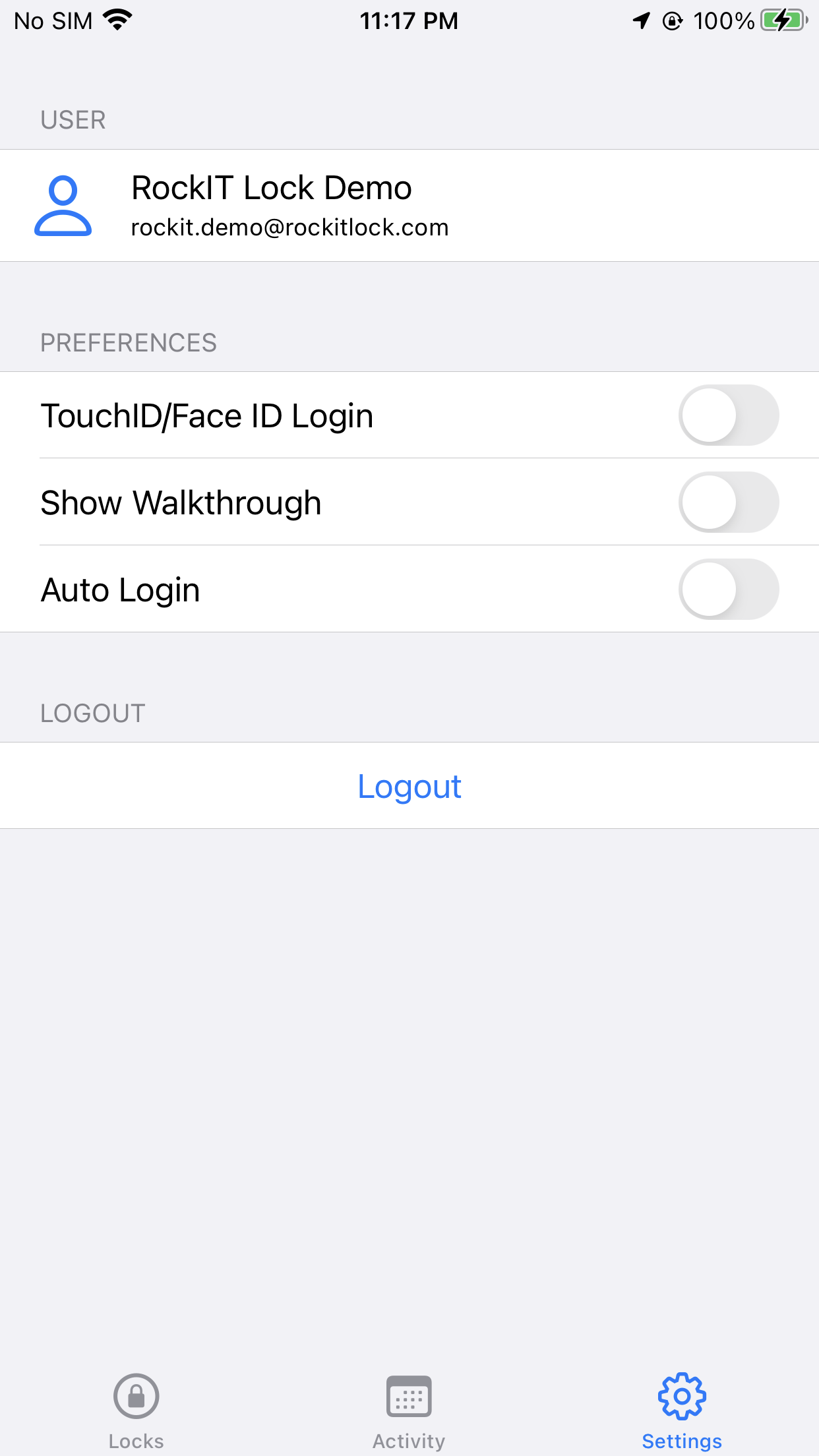
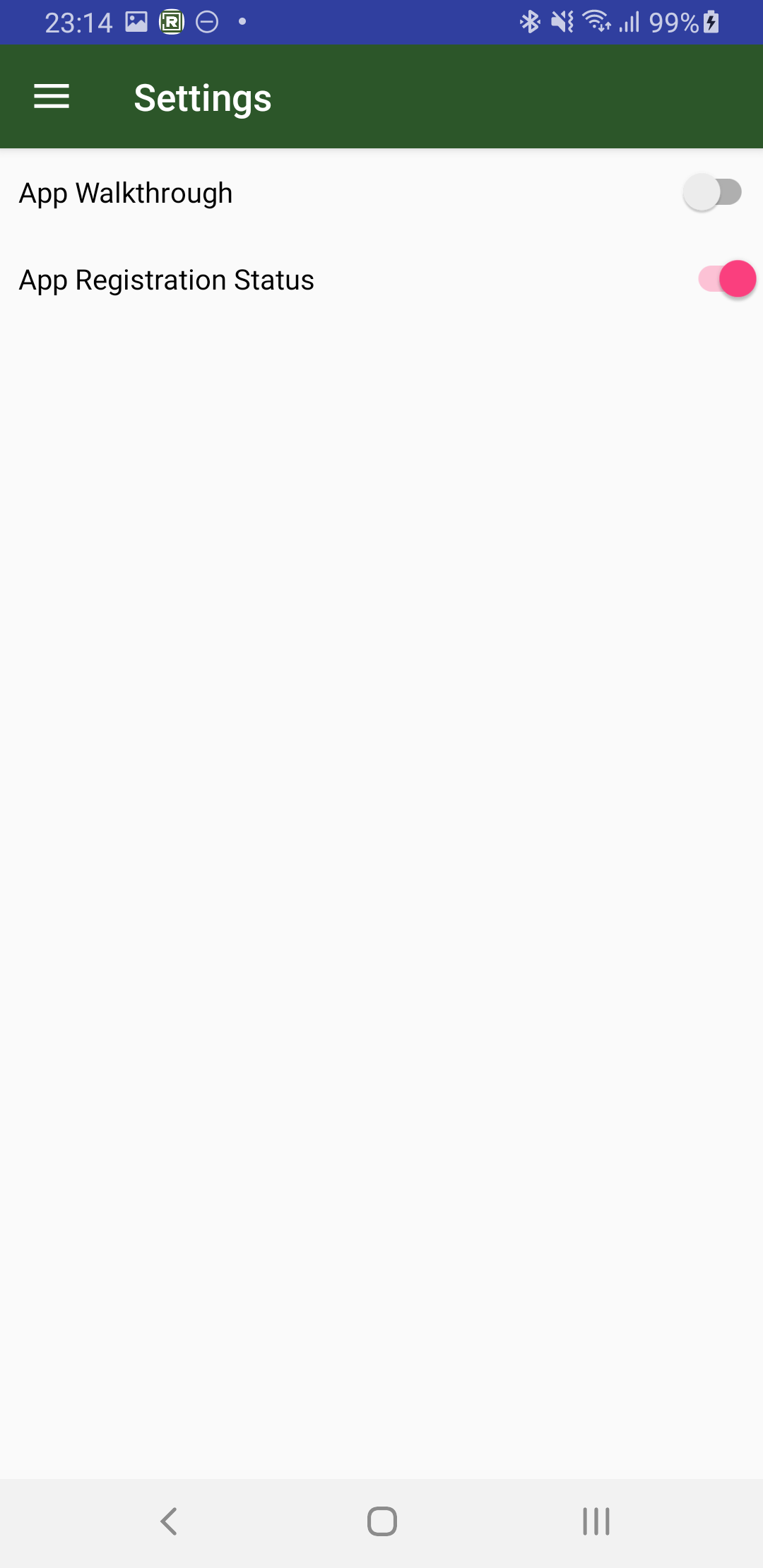
Fig 5. RockIT Lock mobile app Settings. iOS left Android right
Further Assistance
Refer to the Troubleshooting article for further information, or
If you need further assistance please create a support ticket select here
Please note that mobile app screenshots are from devices running iOS 15 and Android 11. There may be some difference depending on your device type and operating system version