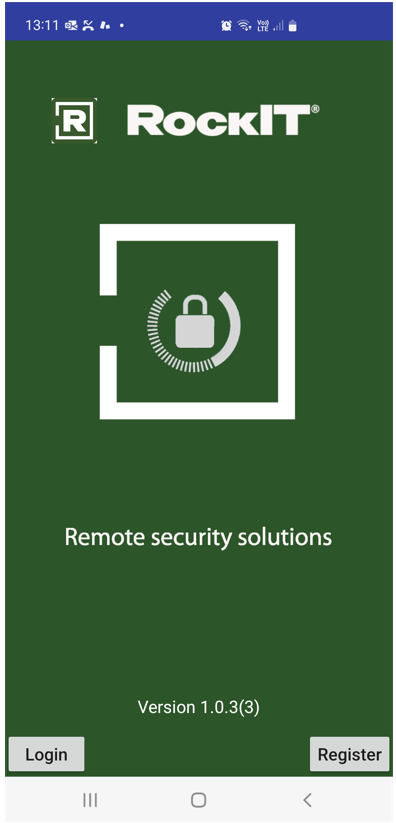
RockIT smart locks communicate via Bluetooth with the RockIT Mobile app installed on the users mobile phone device. The user permissions granted in the RockIT web portal are automatically transferred to the Mobile device when an online connection is made.
When the smart lock is not in use it goes into a sleep mode to save battery use.
RockIT mobile phone app user requirements
1) Charged Battery
Users should have a means to charge their mobile phone if required. A flat battery means no smart lock access.
2) Unlock and lock with the app
Always carry your smart phone with app open, every time you unlock and lock the smart lock.
3) App timeout after 9 days
If you have not used your app in the last 9 days your app will Timeout. This ensures that your lock permissions are up to date and protected.
To restart your access, simply open your app when ONLINE in cellular internet coverage. Every time you use your app to unlock a smart lock, when ONLINE, the timer automatically resets.
4) Update you app version
Updating your mobile phone app for Android or iOS ensures you have the latest features and bug fixes.

To operate smart locks
View the link for further information on
- What phone do I need?
- How to install my app?
- How to use my smart lock?
- Need Help?
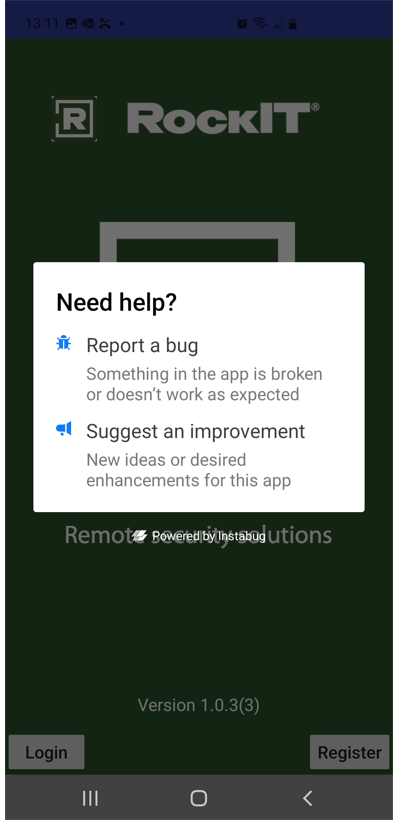
Create a Bug Report using Phone Screen Shot function
Note different phones and versions may use a different screen shot method check your manual if unsure.
Android Mobile Phone press the volume down & power button at the same time
iOS Apple Mobile Phone press the Power and the Home button at the same time or alternatively The Power and the Volume Up button at the same time.
Once the Need Help? screen comes up choose either to Report a Bug or Suggest an Improvement.