1. INFORM |
2. SETUP |
3. SUPPORT |
4. GO LIVE |
5. MONITOR |
STEP 1 - INFORM
TASK 1 Inform Company Team
Email your company team to inform as to why the new technology is being introduced, what it does, requirements and a planned go live month or date.
Sample template (copy & paste, then edit in you email program)
RockIT Introduction Email Company Staff |
|
Subject : NEWS – Planned Technology Change to our Gate Locks
Dear XXXXXX (Staff) Over the past XXXX we have been considering how can we more effectively manage the access onto our land to ensure that our people and assets are well protected. Our current use of padlocks and keys requires a large amount of administration with the issuing and tracking of keys. Upgrades are both a time consuming and costly task and when the first key is lost or stolen the lock system becomes compromised as does our investment. We would like to advise that in XXXX (July) this year we are introducing the RockIT electronic smart lock technology where lock can be opened by a mobile phone app. The new RockIT smart lock technology means that we can issue and revoke permissions remotely without any face-to-face engagements. Locks are opened by Bluetooth and work in remote site without cellular coverage. We can monitor the access at any lock point and information can be used to verify permit compliance and share with our security providers. Currently we are reviewing our permit system records to ensure that details are correct and current. What's Next You will be sent an email with lock permissions. Open the email message on your smart phone, load and register the mobile app then your ready to unlock the smart locks. What you can do now Play the short videos so you know what to expect. https://rockitlock.com/instructionsandsupport/
Planned Smart Lock Sites Locks are planned to be installed at all our operational entry points. Support Support is available from the following:
Regards XXXXXXXX(Client)
|
TASK 2 Setup app for Company Team
Set company team members up with app and provide demonstrations with using the HD Padlock.
TASK 3 Inform External Parties
Email your external parties to inform as to why the new technology is being introduced, what it does, requirements and a planned go live month or date.
Sample template (copy & paste, then edit in you email program)
RockIT Introduction Email Users |
|
Subject : NEWS – Planned Technology Change to our Gate Locks
Dear XXXXXX (User) Over the past XXXX we have been considering how can we more effectively manage the access onto our land to ensure that our people and assets are well protected. Our current use of padlocks and keys requires a large amount of administration with the issuing and tracking of keys. Upgrades are both a time consuming and costly task and when the first key is lost or stolen the lock system becomes compromised as does our investment. We would like to advise that in XXXX (July) this year we are introducing the RockIT electronic smart lock technology where lock can be opened by a mobile phone app. The new RockIT smart lock technology means that we can issue and revoke permissions remotely without any face-to-face engagements. Locks are opened by Bluetooth and work in remote site without cellular coverage. We can monitor the access at any lock point and information can be used to verify permit compliance and share with our security providers. Currently we are reviewing our permit system records to ensure that details are correct and current. What's Next You will be sent an email with lock permissions. Open the email message on your smart phone, load and register the mobile app then your ready to unlock the smart locks. What you can do now Play the short videos so you know what to expect. https://rockitlock.com/instructionsandsupport/
Other Comments Some hunting clubs have already had exposure to the RockIT locks and given demonstrations at club meetings. Support Support is available from the following:
Regards XXXXXXXX(Client) |
TASK 4 Demonstrate External Parties
Make available a smart lock for the purpose of demonstrations to contractor and user group meetings and with their main representatives.
STEP 2 - SETUP
TASK 1 Prepare Portal Upload Data Set
Firstly make a copy of all your current permit and key allocation list into a spreadsheet. Label as the Portal Upload Data Set.
Secondly send a request for information from your contractors, suppliers and user groups to provide a list of their current user details.
Sample template (copy & paste, then edit in you email program)
RockIT INFORMATION REQUEST:User Permission Details |
||||||||||||||||||||||||||||||||||||||||||
|
Subject : INFORMATION REQUEST: Provide User Permission Details
Dear XXXXXX(User) To set up RockIT we require that all Contractors, suppliers and User Groups provide a list of those persons who are to be issued with permissions to the RockIT mobile phone app and smart locks. Please provide this information in the following format as the example below. This list must be provided by the Due Date of XX/XX/XXX otherwise your users will not have access to our lock points. Sample list
Your list will be subject to review by our company and you should consider the following:
Regards XXXXXXXX(Client)
|
TASK 2 Activate Smart locks & Assign to Locks Groups
Activate all smart locks an d make offline enabled in the portal and assign to your lock group structure.
TASK 3 Create a Team Permission Structure
Create a team permissions structure to organise your company staff, contractors, user groups and emergency services. The structure should allow you to easily track users, grant and revoke permissions.
TASK 4 Finalise Team Permissions
Update Portal Upload Data Set with list sent back from contractor and user groups. Revise data set. Ensure the data is correctly formatted then upload into the RockIT Portal and team structures as required.
TASK 5 Advise Users their Permissions are to be Granted
Send an email communication that advises users that they will shortly receive an email that they have been granted access permissions. To install and register the mobile app before the Go Live date.
Sample template (copy & paste, then edit in you email program)
RockIT Permissions Granted Notice Email |
|
Subject : UPDATE: RockIT smart lock Permission Granted
Dear XXXXXX(User) We would like to advise that your smart lock access permission have been granted and you will receive an email from RockIT. To activate you will need to install the app on you mobile phone and register your account. This must be completed before the Due Date XX/XX/XXXX to ensure you have access before we Go Live. Support Support is available from the following:
Regards XXXXXXXX(Client) |
TASK 6 Activate the Granted Permissions
By linking a Lock Group to a Team this will automatically grant permissions to all the team members listed, to the smart locks that have been assigned. Check Team Permissions to confirm complete.
TASK 7 Activate Individual Permissions
For those users who are not part of a team they can be given access to one or more individual smart locks or Lock Group. This will trigger an email to install and register their app.
STEP 3 - SUPPORT
TASK 1 Send Reminder Notice
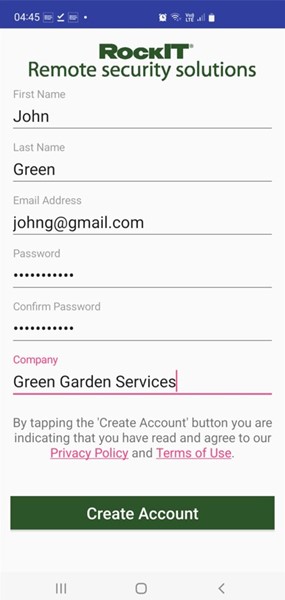
Check in Portal which users may have yet to Install and Register the RockIT app. Send a reminder notice and advise the Go Live date. No permissions means no access.
If email bounce back from the user as incorrect this will need to be follow up with those parties responsible for managing the user lists.
Sample template (copy & paste, then edit in you email program)
RockIT Reminder Notice Email |
|
Subject : REMINDER NOTICE: Install RockIT Mobile app and Register
Dear RockIT Users You should have received an email to load the RockIT Mobile app onto your mobile phone which is required to open the smart locks you have permission to access. We noticed that you have not fully completed this task and would like to provide the following assistance. This must be completed before the Due Date XX/XX/XXXX to ensure you have access before we Go Live.
If you are having trouble, then send a request through with you details and a description of the issue. Contact RockIT Lock Support Team Cheers, Ph 0800 22 11 55
|
TASK 2 Tips with Using RockIT app
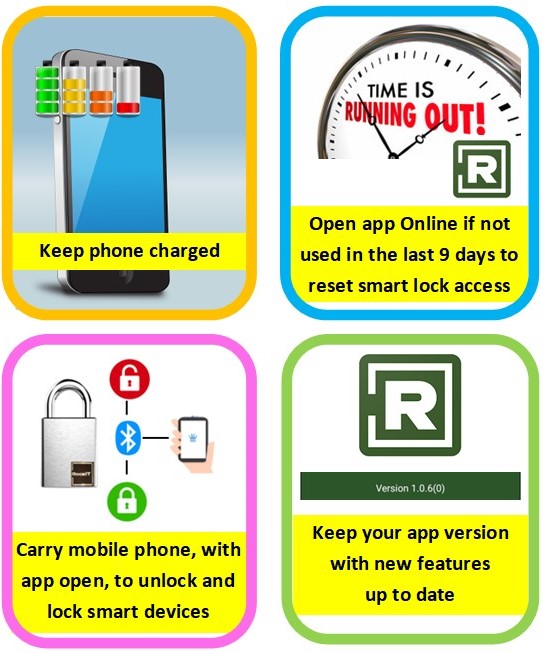
Send email with tips on using the RockIT app to ensure users will always have permissions access to the smart lock and are updating portal data.
Sample template (copy & paste, then edit in you email program)
Tips when using RockIT Email |
|
Subject : ROCKIT INFORMATION: Tips when using RockIT. Hi RockIT Users The following tips will ensure you have access to your RockIT app and smart lock.
4 Important things to remember
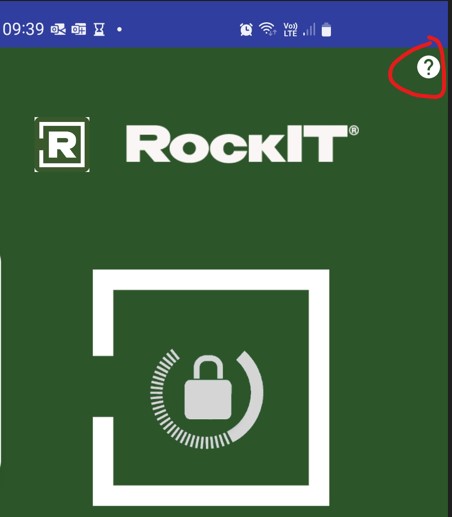
Instructions for using the RockIT app and smart locks
Cheers, Ph 0800 22 11 55
|
TASK 3 Update User Registration Details
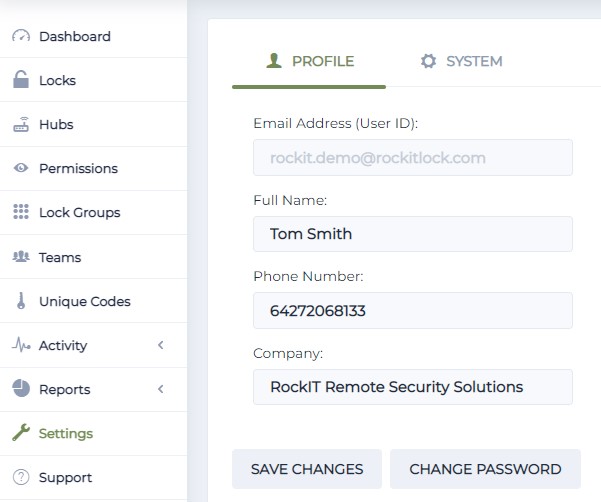
Send instructions where a users account details are incomplete and they have been activity using the smart lock. Company administrator to contact RockIT Lock Support Team
Sample template (copy & paste, then edit in you email program)
RockIT Update Account Details Email |
|
Subject : UPDATE NOTICE: Update Account Details
Dear XXXXXX(User) We have noticed that some of your account details are missing. Read these instructions then select the link below to update. When you select the web link, sign in with the same email address and password you use to login to your RockIT app. Select the Settings menu Then add your details, Full Name: Phone Number: Company: Then Select Save Changes Now close your web browser
Select link https://go.rockitlock.com/settings
Thank you for updating your records. Cheers, Ph 0800 22 11 55 |
STEP 4 - GO LIVE
TASK 1 Backup Plan
The company is to have in place a backup plan and dedicated person to carry out:
-
Company Administrator for granting and revoking user permissions, adding locks, lock groups and teams, monitoring activity, providing support to users with app and smart lock requests. The administrator will deal directly with Allied Locks should a system failure occur a smart lock fails to operate or any replacement.
-
Service Provider work such as replacing the lock and shackle, deploying locks, replacing battery, infield issues where the lock has been damaged or fails to operate.
Backup smart lock should be available to the Service Provider or another agreed plan should an issue occur with the smart lock and a replacement is required.
TASK 2 Deployment Schedule & Site Support
Schedule the install of smart locks and deploy in manageable stages. It may be beneficial to have company staff on site at some of the high use and critical sites to observe and offer support. Consider day one and periodically on different days and key usage times.
This will be useful to assist with the task of managing change, gathering feedback, demonstrates company commitment and increases user buy in.
TASK 3 Stakeholder Engagements
Enable company staff who engage with contractors and user groups to have access to a smart lock for introductions, where they can give instruction in field and at operational sites as required.
TASK 4 Monitor Issues & Resolve
Monitor Issues and push back on change. Some users may require further instruction encourage them to look at the online information. RockIT Instructions & Support
Where users are part of other business and user groups have their representatives follow up with users to ensure responsibility sits where it can best resolve.