With the RockIT web portal you are able to share and revoke access to any locks that you are either the Owner of, or have been given Admin access to.
Permission Levels
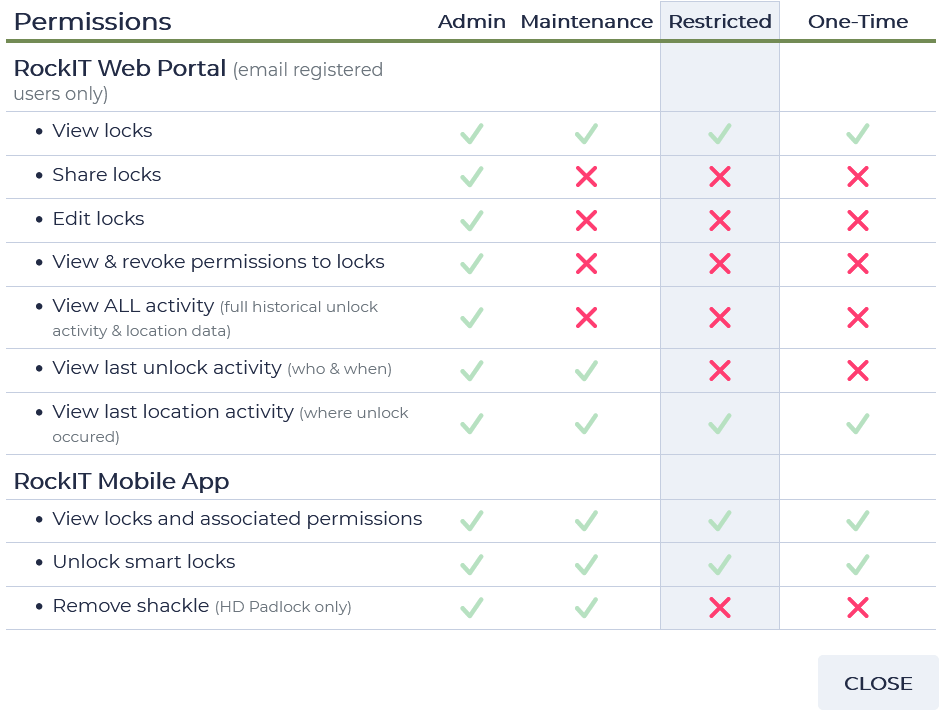
There are four permission types with varying levels of access to the lock and its details. Permissions can be shared to email registered users and unique codes, with the exception of Admin that is only shareable to email registered users.
Admin
- For users that will be involved in the monitoring and managing access to the lock in question
- Can access all features of a lock via the RockIT mobile app and web portal
- Only shareable to email registered users
- Can see mobile app lock activity for all persons having used this smart lock.
Maintenance
- For users that would be involved in maintaining locks such as battery replacements
- Can access some advanced features of a lock via the RockIT Lock mobile app
- Can see the lock on Locks page of web portal
Restricted
- Essentially an unlock only permission
- Can unlock a lock via the RockIT Lock mobile app
- Can see the lock on Locks page of Web portal
One-Time
- Essentially a Restricted permission with access time limit that begins when they first open the lock
- Can unlock a lock via the RockIT Lock mobile app for the duration that is specified during lock share
Sharing locks
Locks are shared from the Locks page of the RockIT Lock web portal.
- Login to the Rockit Lock web portal and select Locks from the left side menu
- Use the filter fields to find the lock/s that you wish to share and tick the box next to them

- Once you've selected your locks, click the Share button at the top right to bring up the lock share window
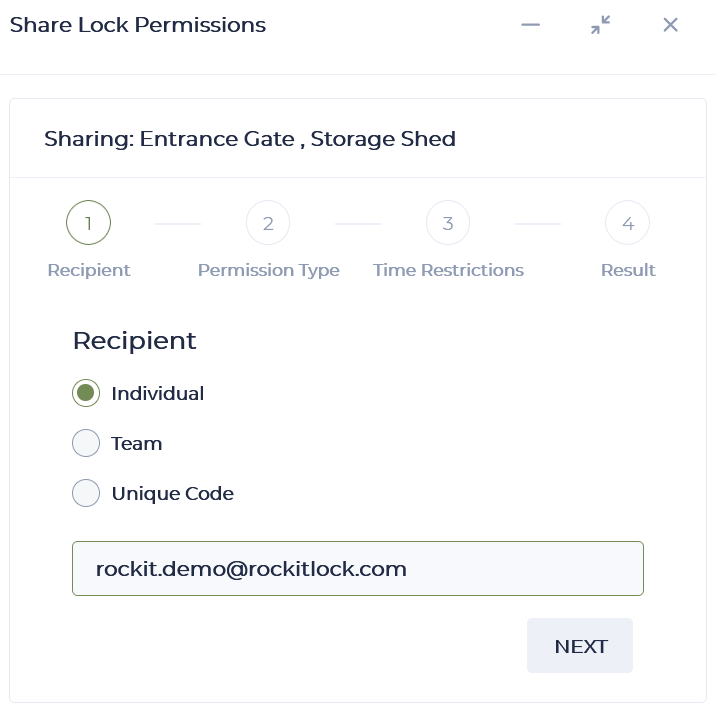
- Select the type of user you'd like to share to, and enter or select appropriate detail, then click Next
- For Individual enter the user's email address. Note, they do not need to be registered for an account at this stage but won't be able to access the lock until they do
- For Team select the team from the list. The team will need to have been created already see RockIT Lock - Lock groups and teams for further info
- For Unique Code select the code from the list. The unique code will need to have been created already before this task can be completed. See RockIT Lock - Unique Codes for further information

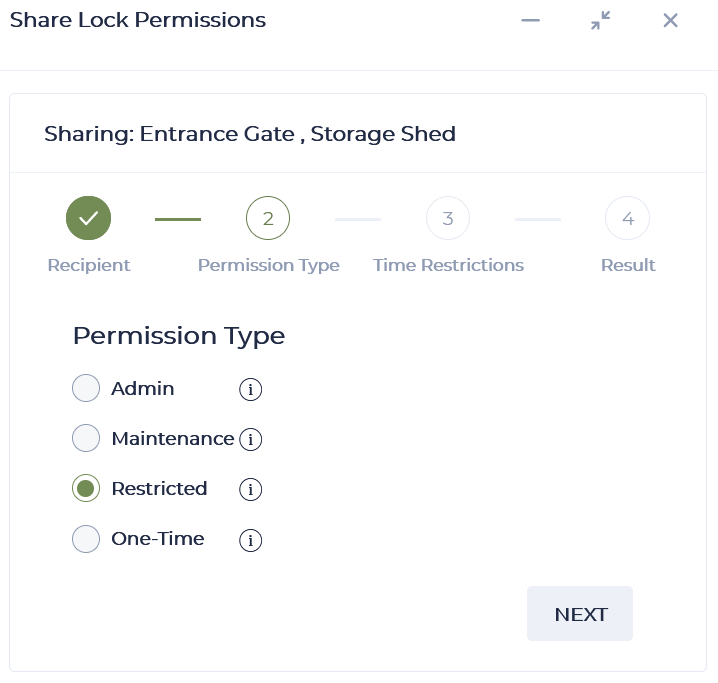
- Select the permission type that you would like to share, then click Next
- Click the (i) for a refresher of permission levels


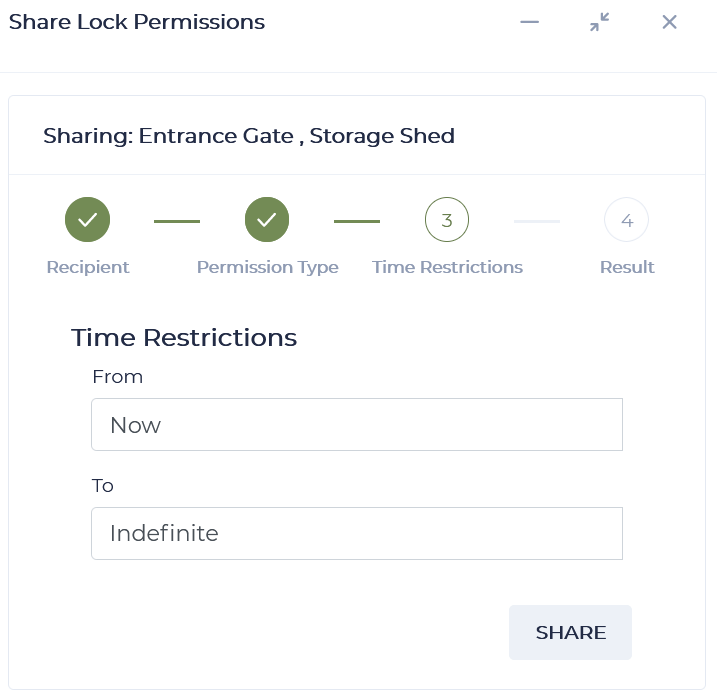
- Enter in any time restrictions that you wish to enforce and click on share
- Click in the From and/or To box to bring up a calendar to pick a start and end time and date
- The shared access will only be valid within that time window
- When selecting the One-Time permission option the access at a given data and time range will be restricted to a limited window of time (in minutes) which begins when the lock is first opened.
- There will be a message advising of success once complete
Viewing and deleting permissions
When revoking a person's permissions complete the following:
Individual in a Team
Go to the Team page and select the team, then the hamburger 3 dot button and to
1) VIEW ACTIVE PERMISSIONS by selecting the Permissions option to see which smart lock permissions have been granted for each end user.
2) DELETE ACTIVE PERMISSIONS by selecting the Permissions option, then tick each permission to be deleted, then select the Revoke option on the top right of the panel.
Check the permissions option again to confirm they have been deleted.
3) DELETE USER by selecting the trash can beside the end users name and ticking the Revoke all associated permissions box, the select the Confirm option.
Individual not in a Team
Go to the Permissions page and enter the email address of the person of interest into the Granted To search panel.
To delete a permission tick the box beside the members name and select the Revoke option on the top right of the panel.