Web Portal & Mobile app Troubleshooting
- To login you will need to have registered your account. See Register Account
- If you can’t login after signup, first check all your email inboxes for the verification email.
- If you can’t login, try a password reset. Note you will need to have access to your email for verification. See Password Reset
- Other issues can often be resolved by clearing your browser’s cookies and cache. Refer to your browser’s help documentation for instructions
RockIT Mobile App Troubleshooting
- For the RockIT Dominator Mobile smart lock and the HD (Heavy Duty) padlock, make sure to wake the lock from sleep before trying to unlock it via the app.
-
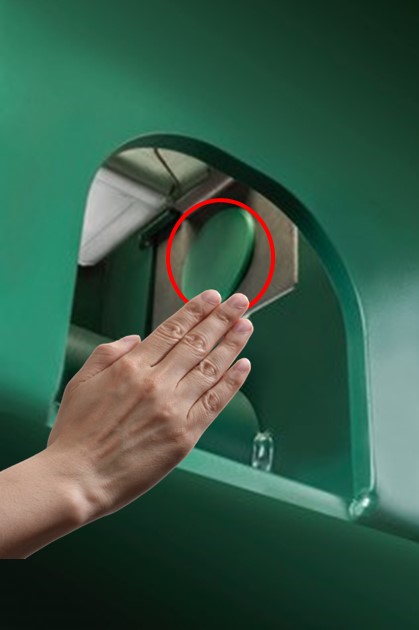
- Insert hand into the Stronghold Lockbox and touch with finger the large touch senor.
-
-
-
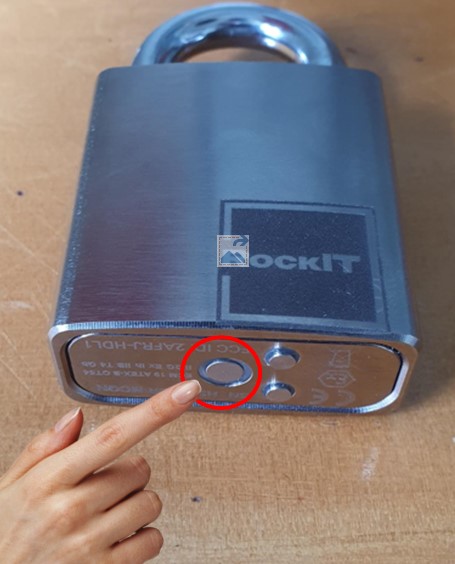
- biggest round button on the bottom plate. Should see a blue light
-
- Ensure you have the latest version of the RockIT Lock app installed (as found on Apple App Store or Google Play Store) Go to web site links
For android phone 
For Apple phone 
- Ensure Bluetooth is enabled on your phone, and that RockIT Lock app has permissions
- Check the ‘My Access’ tab within the RockIT Lock app to see what locks your login has access to
- Ensure you are in the ‘Find & Unlock’ tab within the RockIT Lock app when trying to open locks.
- Force close the RockIT Lock app and retry the login process
- Force close the RockIT Lock app, toggle Bluetooth off then back on and retry
- Reset your app by:
- Uninstalling the RockIT Lock mobile app
- Switching off Bluetooth on your device
- Restarting/ Powercycling your device
- Switching on Bluetooth on your device
- You can refresh the app’s scan for locks by swiping down from the top of the screen
Support Ticket
If you need further assistance please create a support ticket select here
Please note that mobile app screenshots are from devices running iOS 15 and Android 11. There may be some difference depending on your device type and operating system version